
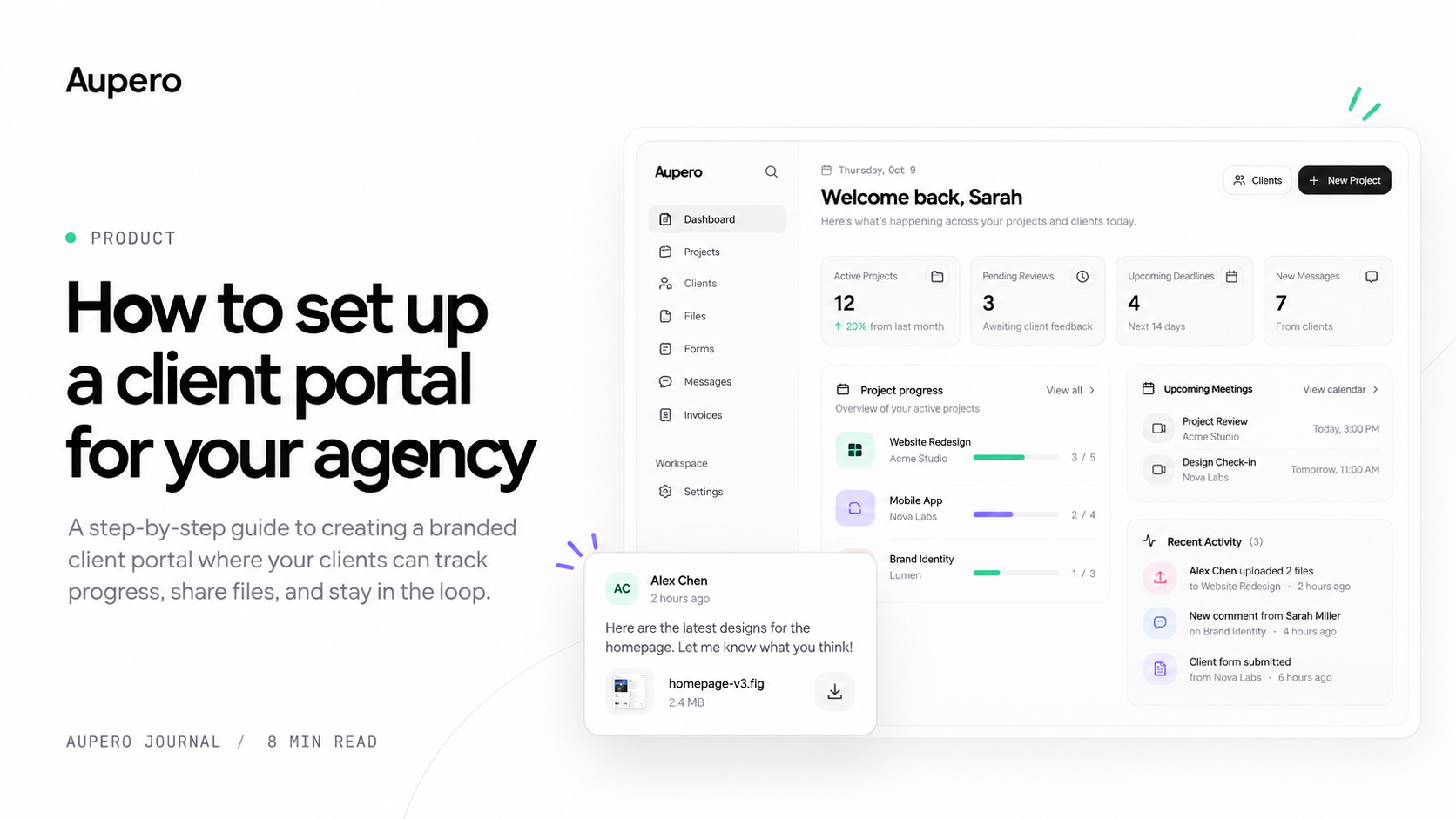
A client portal gives your clients a dedicated place to follow their projects, access deliverables, communicate with your team, and stay informed without relying on scattered emails and messages.
With Aupero, you can build a branded client portal without developing one from scratch. Choose a starting template, create the pages you need, customize the appearance, and tailor the content to your agency's workflow.
This guide walks you through the process, from the initial setup to publishing a portal your clients can use.
1. Open the Client Portal settings
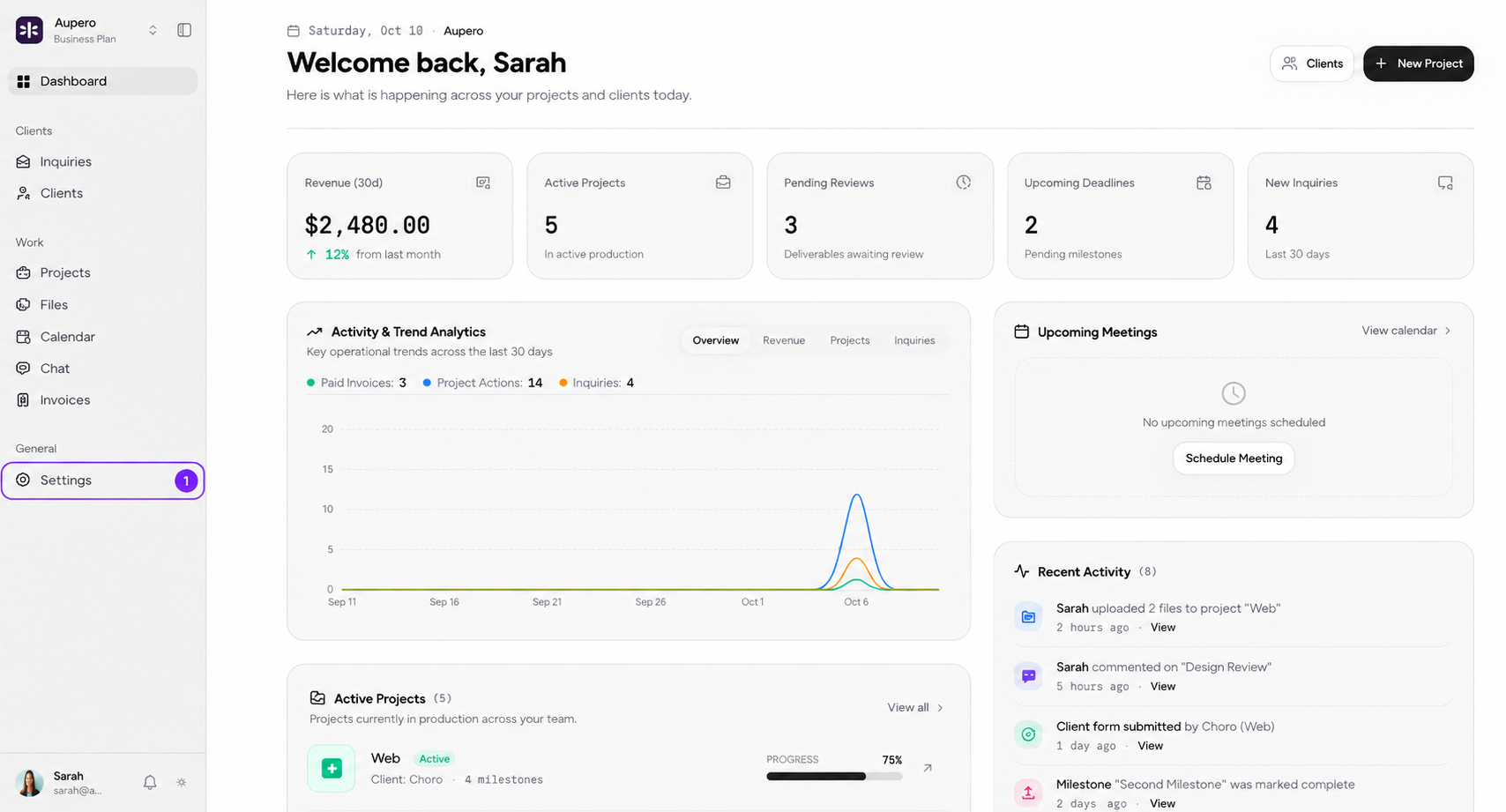
Starting point: Your Aupero dashboard
From your Aupero dashboard, navigate to Settings → Client Portal.
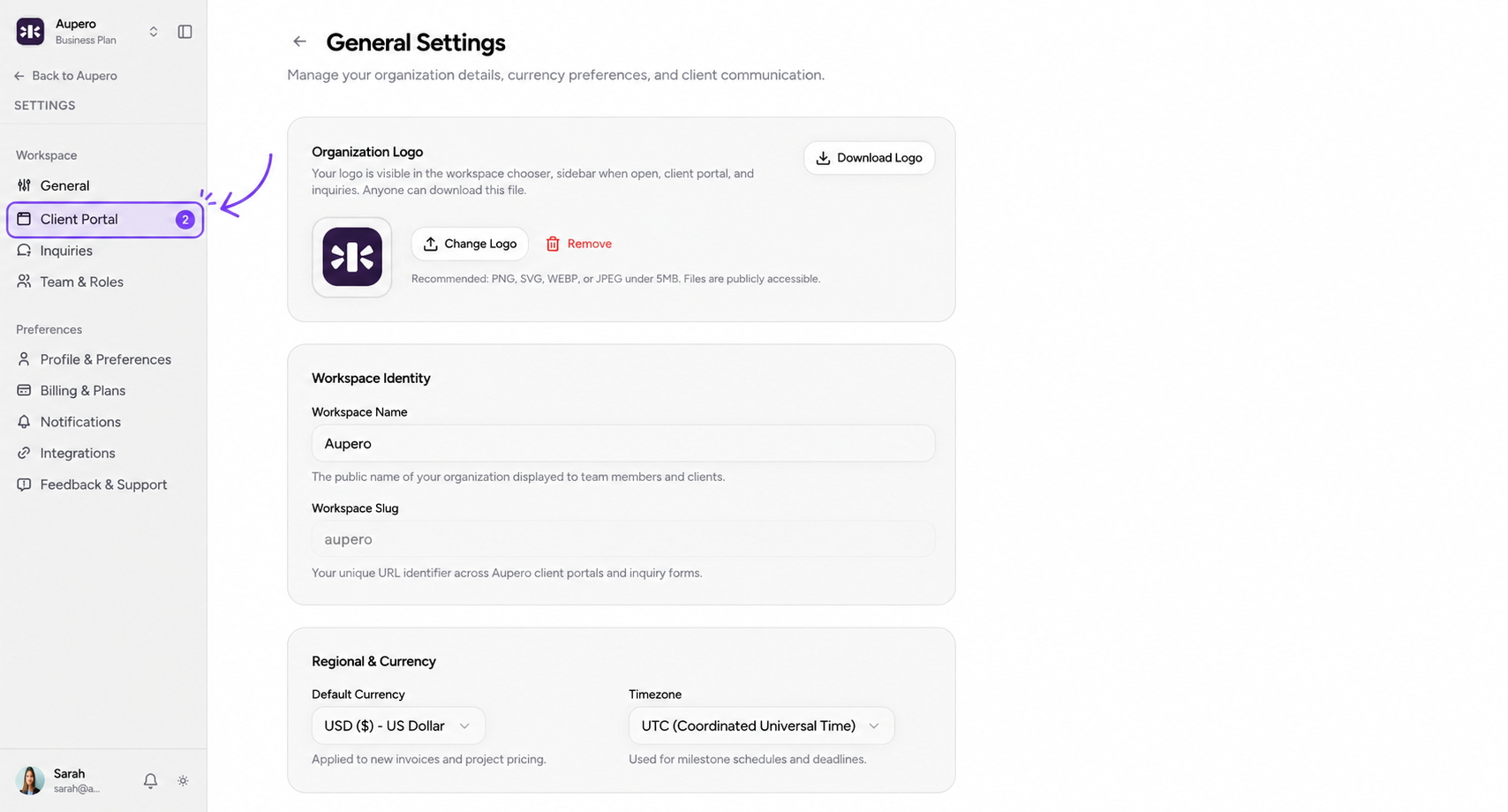
This is where you'll manage the experience your clients see, including your portal's pages, navigation, layout, and visual identity.
You don't need to configure everything at once. Start with a basic structure, then refine it as you understand what your clients need.
2. Choose a starter template
Start with a structure that fits your workflow.
You don't have to build your portal from a blank page. Aupero provides starter templates designed around different agency workflows.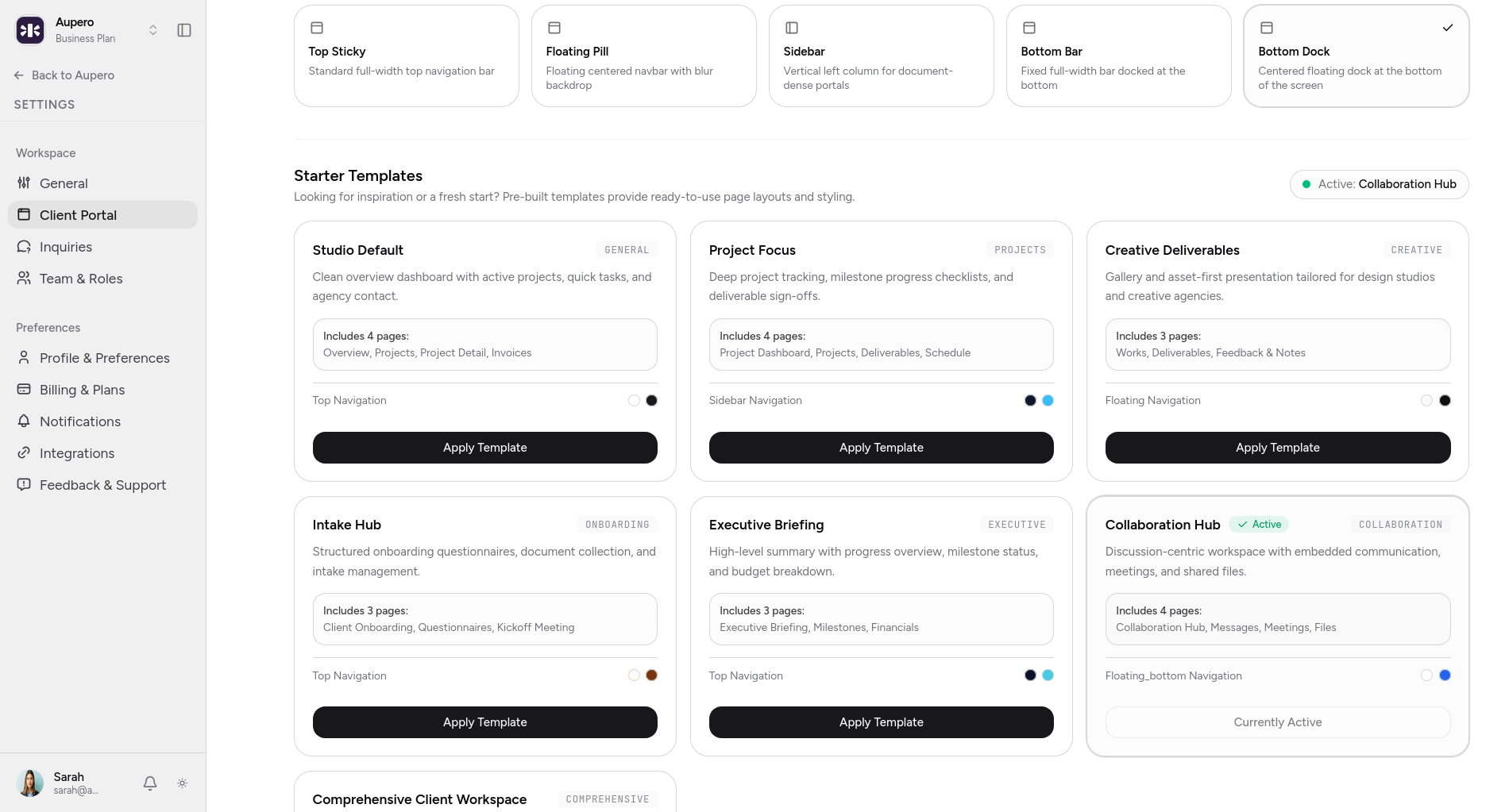
Studio Default
A general-purpose overview for agencies that want to give clients quick access to projects, project details, and invoices.
Project Focus
Designed around project tracking, milestone progress, deliverables, and sign-offs.
Creative Deliverables
A presentation-oriented layout for design studios and creative agencies sharing work and collecting feedback.
Intake Hub
Organize client onboarding questionnaires, document collection, and initial information gathering.
Executive Briefing
Give clients a high-level view of project progress, milestone status, and financial information.
Collaboration Hub
Bring discussions, meetings, and shared files together in a communication-focused workspace.
Each template comes with a predefined page structure and styling. Select the one closest to your workflow and apply it as your starting point.
You can customize the portal further afterward, so you don't need to find a template that matches your needs perfectly.
3. Customize your portal's appearance
Make the experience feel like your agency.
Once you've selected a template, customize its appearance to align with your brand.
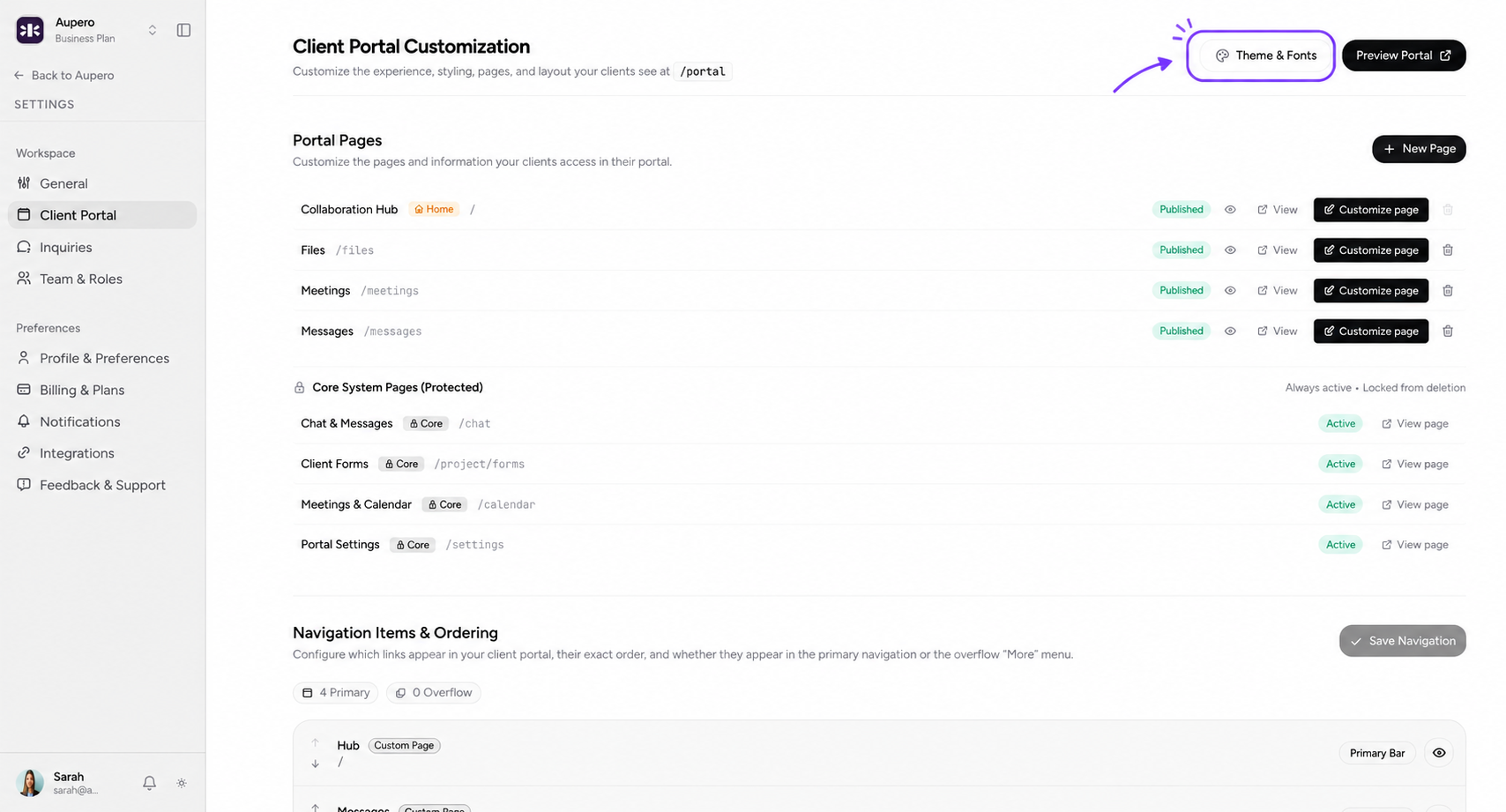
From the Client Portal settings, open the theme and branding customization options.
Colors and visual style
You can configure the main visual tokens used throughout the portal, including:
- Page background: the primary background behind your content.
- Text foreground: the default text color.
- Card surface: the background of content cards and panels.
- Primary accent: the color used for buttons and interactive elements.
- Muted surface: the background for secondary elements.
- Border color: the color used to separate sections and components.
You can also adjust the color mode and corner radius to control the overall appearance, from sharper interfaces to softer, rounded designs.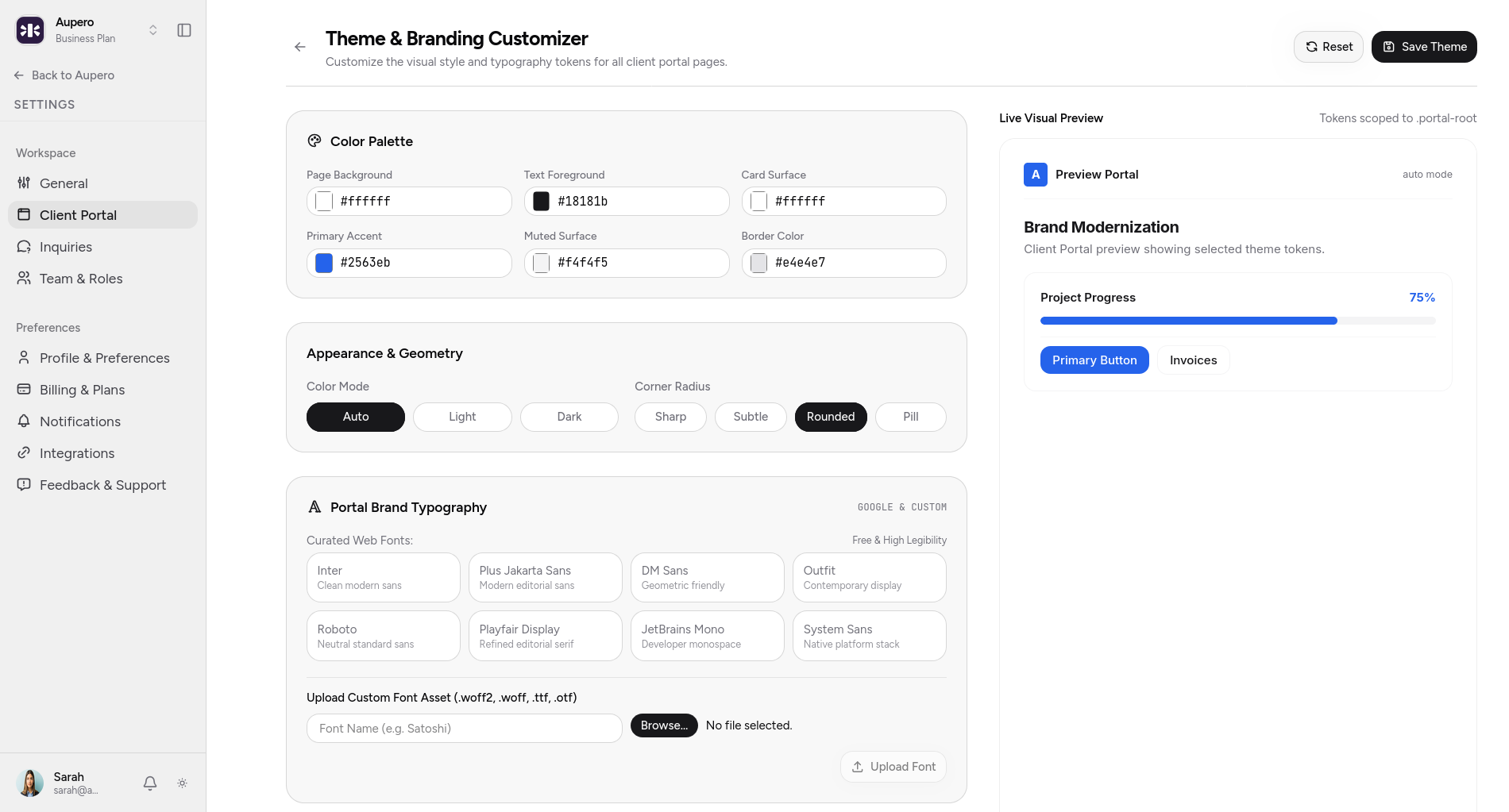
4. Configure your portal pages
Decide what your clients can access.
Your portal is made up of pages. You can manage these from the Client Portal Customization screen.
Aupero includes protected system pages for essential functionality, such as chat and messages, client forms, meetings and calendar, and portal settings. These pages remain active and cannot be deleted.
You can also create custom pages for the information and workflows specific to your agency.
For example, you might create:
- Getting Started: explain your process and tell new clients what happens next.
- Project Roadmap: outline the stages of a project and what clients should expect.
- Deliverables: provide a dedicated space for presenting completed work.
- Brand Guidelines: share approved logos, colors, typography, and usage instructions.
- Resources: collect documents and reference materials clients frequently need.
To add a page, select New Page, enter its title and web address, and create it. You can then customize the page's content and decide how it fits into your portal's navigation.
A useful starting point is to create only the pages your clients actually need. You can expand the portal as your workflow evolves.
5. Build your pages with Markdown and custom components
Go beyond static text without building everything from scratch.
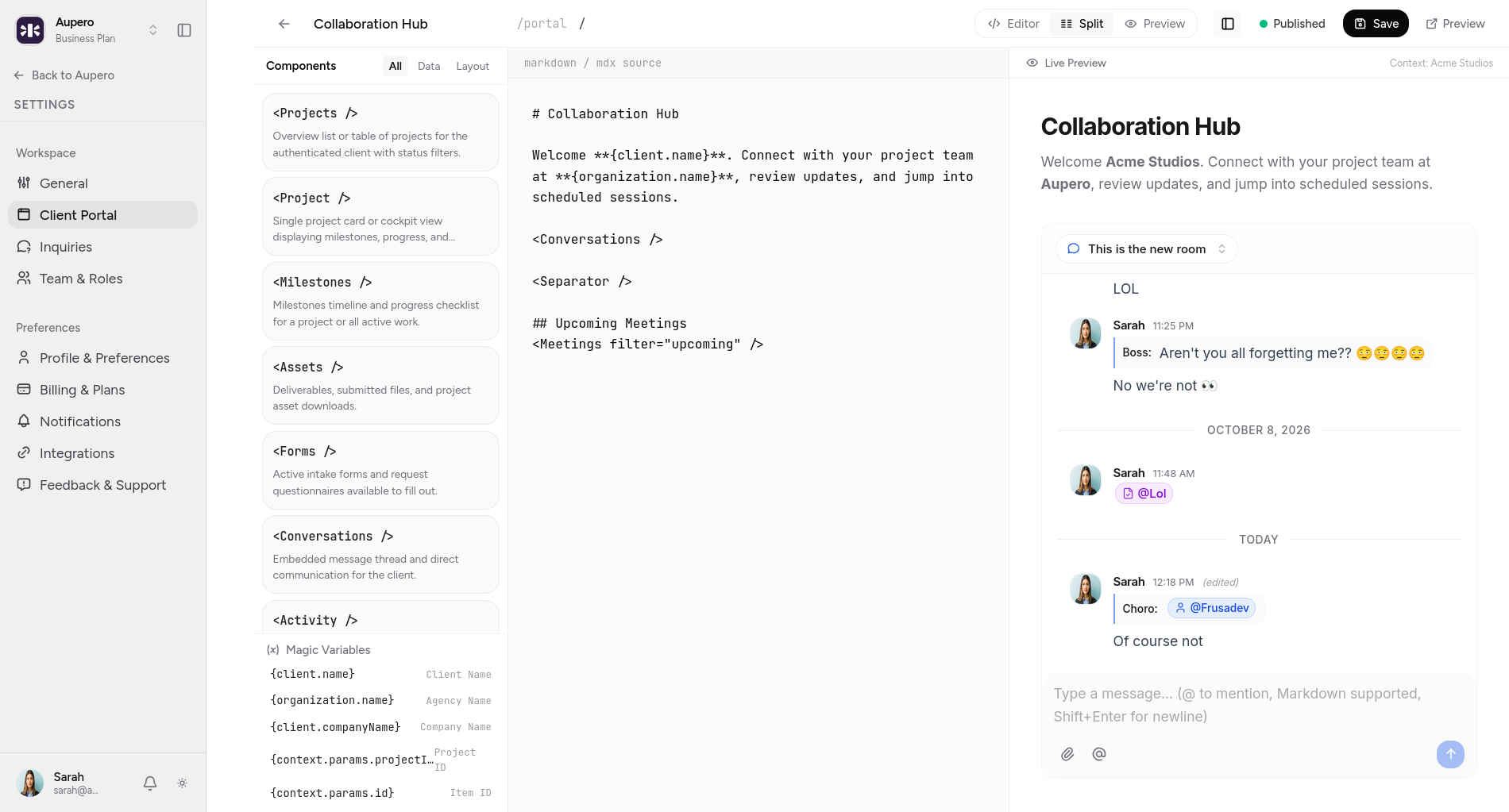
Aupero's page editor lets you work with Markdown and custom components to shape the content of your portal pages.
This gives you two complementary ways to build a page.
Write the content
Use Markdown to structure your content with headings, paragraphs, lists, links, and other supported formatting.
For example, a project onboarding page could begin with:
# Welcome to your project

We're excited to work with you.

## What happens next?

1. Complete your onboarding form.
2. Share the required files.
3. Review the project roadmap.

If you have questions, contact us through the project conversation.
This keeps your content readable and easy to maintain.
Add dynamic components
You can also insert Aupero's custom components to display information from the platform instead of manually recreating it in text.
Available component types include:
- Projects: an overview or table of client projects.
- Project: a project card or detailed project view.
- Milestones: milestone timelines and progress checklists.
- Assets: deliverables, uploaded files, and downloadable resources.
- Forms: intake forms and client questionnaires.
- Conversations: an embedded discussion thread.
- Activity: a feed of project-related updates.
- Meetings: upcoming meetings and scheduled sessions.
For instance, a project roadmap page could combine an introduction written in Markdown with a milestone component and a project overview. A resources page could pair explanatory text with an assets component.
This is what makes the editor useful: you can combine your own content with live project information to create pages that serve a real purpose.
6. Organize the navigation
Make important information easy to find.
After creating your pages, configure how clients navigate between them.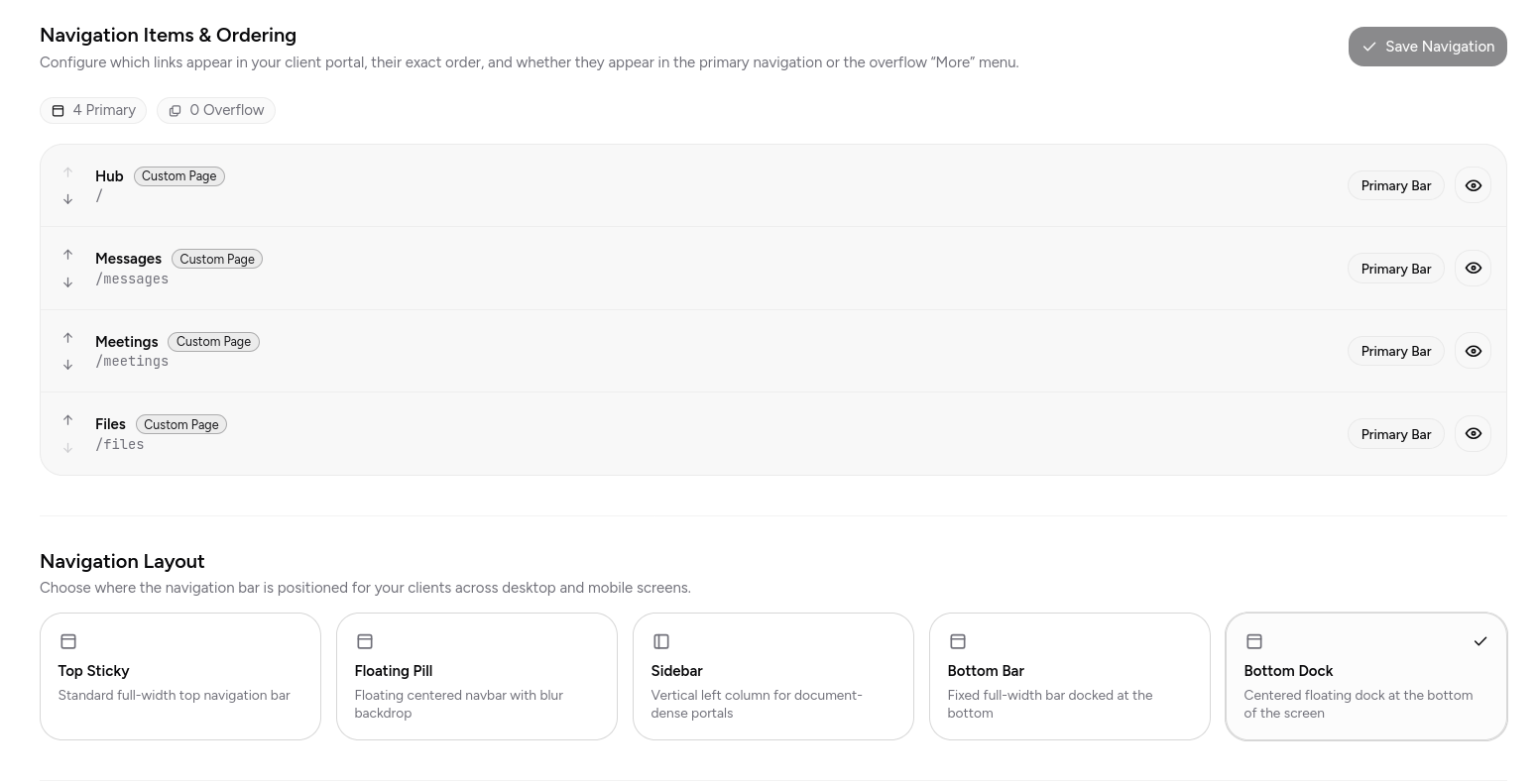
Aupero lets you manage navigation items and their order, including whether they appear in the primary navigation or an overflow menu.
Think about the order from your client's perspective. Put frequently used pages first, and avoid exposing unnecessary destinations.
For example, a design agency might prioritize:
- Collaboration Hub
- Projects
- Deliverables
- Meetings
- Files and resources
Your exact structure will depend on the template and pages you've chosen.
Keep the navigation focused. A portal with five useful destinations is often easier to use than one with fifteen poorly organized ones.
7. Preview and publish your portal
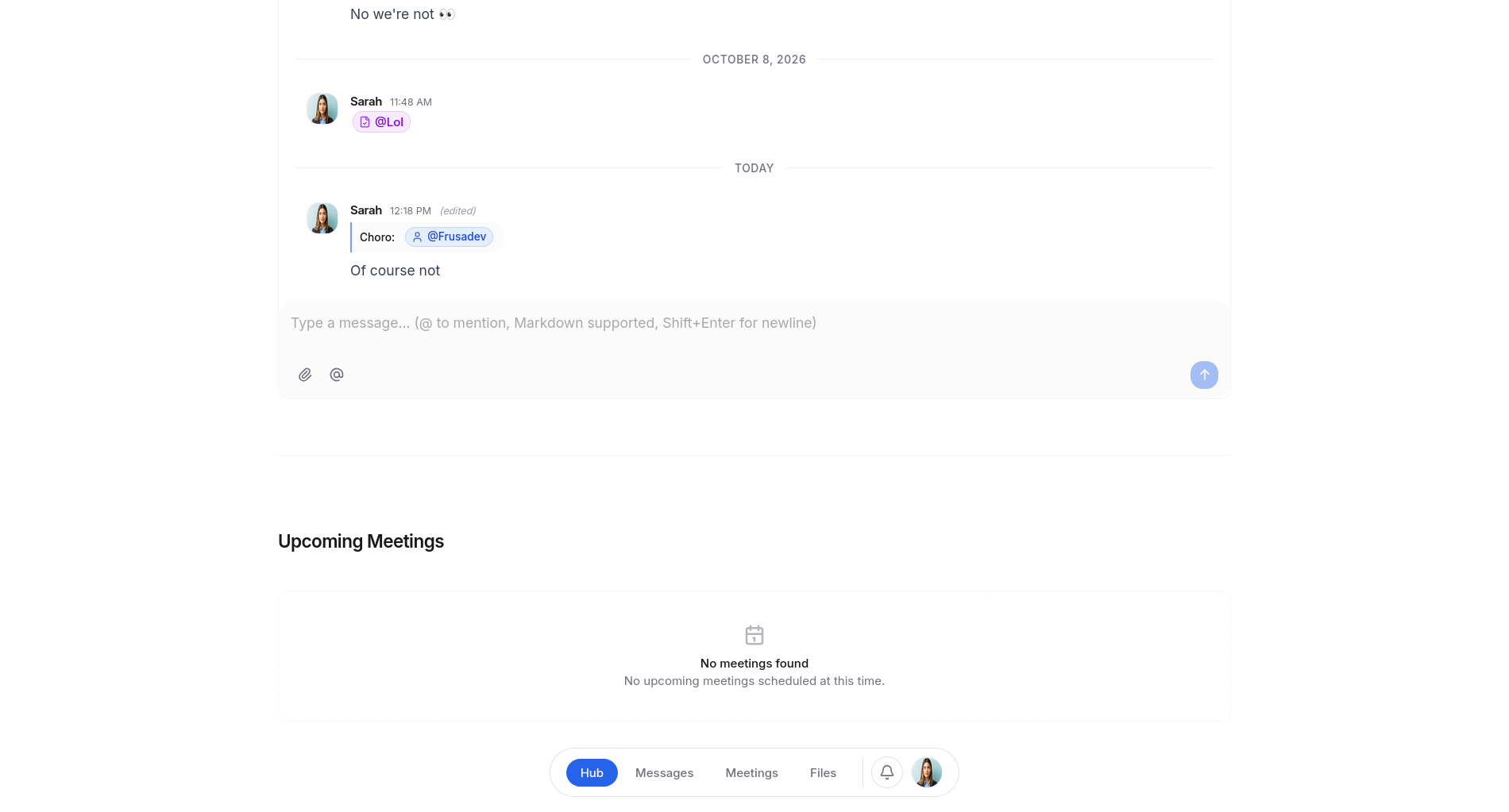
Before sharing the portal with clients, review the experience as a whole.
Use the preview options to inspect your pages and verify that the layout, navigation, content, and visual styling work together.
Check that:
- Your custom pages have meaningful titles and URLs.
- Navigation items appear in the intended order.
- Text and headings are readable.
- Components display the right kind of project information.
- Your theme is consistent across the portal.
- Clients can find the essential pages without unnecessary navigation.
When everything is ready, publish your changes using the relevant save and publishing controls in the editor.
You can continue refining your pages and visual style as your agency's needs change.
What should your first client portal include?
If you're setting up your first portal, don't try to reproduce your entire internal workflow immediately.
Start with a small, useful experience.
| Page or feature | Purpose |
|---|---|
| Overview | Give clients a starting point and a summary of their work. |
| Projects | Let clients find their active projects. |
| Milestones | Make progress and upcoming stages visible. |
| Files and deliverables | Keep shared resources accessible. |
| Conversations | Centralize project-related communication. |
| Forms | Collect onboarding information and other required details. |
| Meetings | Make scheduled sessions easier to find. |
You can build on this foundation with additional custom pages, branding, and layouts once the basics are working well.
Final thoughts
A client portal should make working with your agency easier for both sides. Clients should know where to find updates, access files, review progress, and communicate with your team without having to ask where everything is.
With Aupero, the process is straightforward: choose a template, customize your branding, create your pages, add the components you need, organize your navigation, and publish.
You don't need to build a portal from scratch or develop every feature yourself. Start with the workflow you already have, make the important information accessible, and improve the experience as you go.
Ready to bring your client collaboration into one place? Set up your portal in Aupero and give your clients a clearer way to work with you.